

Why Your Shopify Inventory Management System Can Make or Break Your Business
A Shopify inventory management system is the built-in set of tools Shopify provides to help merchants track stock levels, manage products across locations, fulfill orders accurately, and restock at the right time. Here is a quick overview of what it covers:
| Feature | What It Does |
|---|---|
| Inventory tracking | Monitor stock levels across all locations in real time |
| Inventory states | See what is available, committed, reserved, or incoming |
| Bulk adjustments | Update quantities for multiple products at once |
| Purchase orders | Track supplier orders and automate restocking |
| Multi-channel sync | Keep stock accurate across your online store, POS, and marketplaces |
| Automation | Use Shopify Flow to trigger low-stock alerts and reorder workflows |
| Reporting | Analyze performance with ABC analysis and inventory reports |
Shopify’s inventory tools are available on all plans, starting at $29 per month.
Running a retail or e-commerce business means inventory is almost always your biggest asset. It is also one of the easiest things to get wrong.
Overstock the wrong products and your cash is tied up in goods that are not selling. Understock a top seller and you lose customers, sometimes permanently. In the US alone, roughly $890 billion in merchandise was returned in 2024. That is how much is at stake when inventory decisions go wrong.
Shopify’s built-in inventory tools are designed to help small business owners solve exactly these problems, without needing a dedicated warehouse team or expensive enterprise software.
And when peak season hits, with holiday sales accounting for nearly 19% of annual retail revenue, having a reliable system in place is not optional. It is essential.
Explore more about shopify inventory management system:
Mastering the Native Shopify Inventory Management System

Every Shopify store comes equipped with a native inventory engine that acts as the single source of truth for your stock. This built-in Shopify inventory management platform is designed to handle everything from simple catalog tracking to complex multi-channel routing.
When you log into your Shopify admin, the inventory dashboard provides an immediate overview of your entire catalog. This unified commerce approach ensures that whether a customer buys from your online storefront, a social media channel, or in person at one of your physical locations, your stock updates instantly.
How to Set Up Your Shopify Inventory Management System
Setting up your inventory system correctly from the beginning prevents major headaches down the road. The process begins with configuring your products and their variants. Every product variant must have a unique Stock Keeping Unit (SKU) and a barcode. SKUs are case-sensitive and should follow a consistent naming convention that indicates product attributes like size, color, or style.
To enable tracking, navigate to your Shopify admin, select a product, and ensure the Track quantity setting is checked. If you have hundreds of products, doing this individually is incredibly time-consuming. Instead, you can use the bulk editor to update multiple variants at once. By selecting your products in the admin and opening the bulk editor, you can modify tracking statuses, SKUs, and initial stock quantities across your entire catalog in a spreadsheet-like interface. For detailed instructions on this process, you can refer to the Shopify Help Center guide on adjusting inventory quantities in bulk.
Properly configuring your variants and tracking parameters is a fundamental step in building a high-performing store. For more strategic insights on structuring your store for long-term growth, check out our guide on 10 smart strategies for Shopify e-commerce development.
Tracking Multi-Location Stock in Your Shopify Inventory Management System
Modern retail often requires managing inventory across more than just a single home office. You might have a retail store in Denver CO, a warehouse in Dallas TX, and a third-party logistics provider in New York NY. Fortunately, Shopify allows you to track stock across multiple physical locations.
In the Shopify admin, you can define locations for retail stores, warehouses, pop-ups, or distribution centers. Once your locations are created, you can assign inventory quantities to each specific spot. When an order is placed online, Shopify uses automated routing rules to determine which location should fulfill the order based on proximity and stock availability. This multi-location support is a key reason why your business needs a specialized development partner. To understand how tailored design and development support can help you map out these complex systems, read about why your business needs a Shopify web designer.
Understanding Shopify Inventory States and Quantities
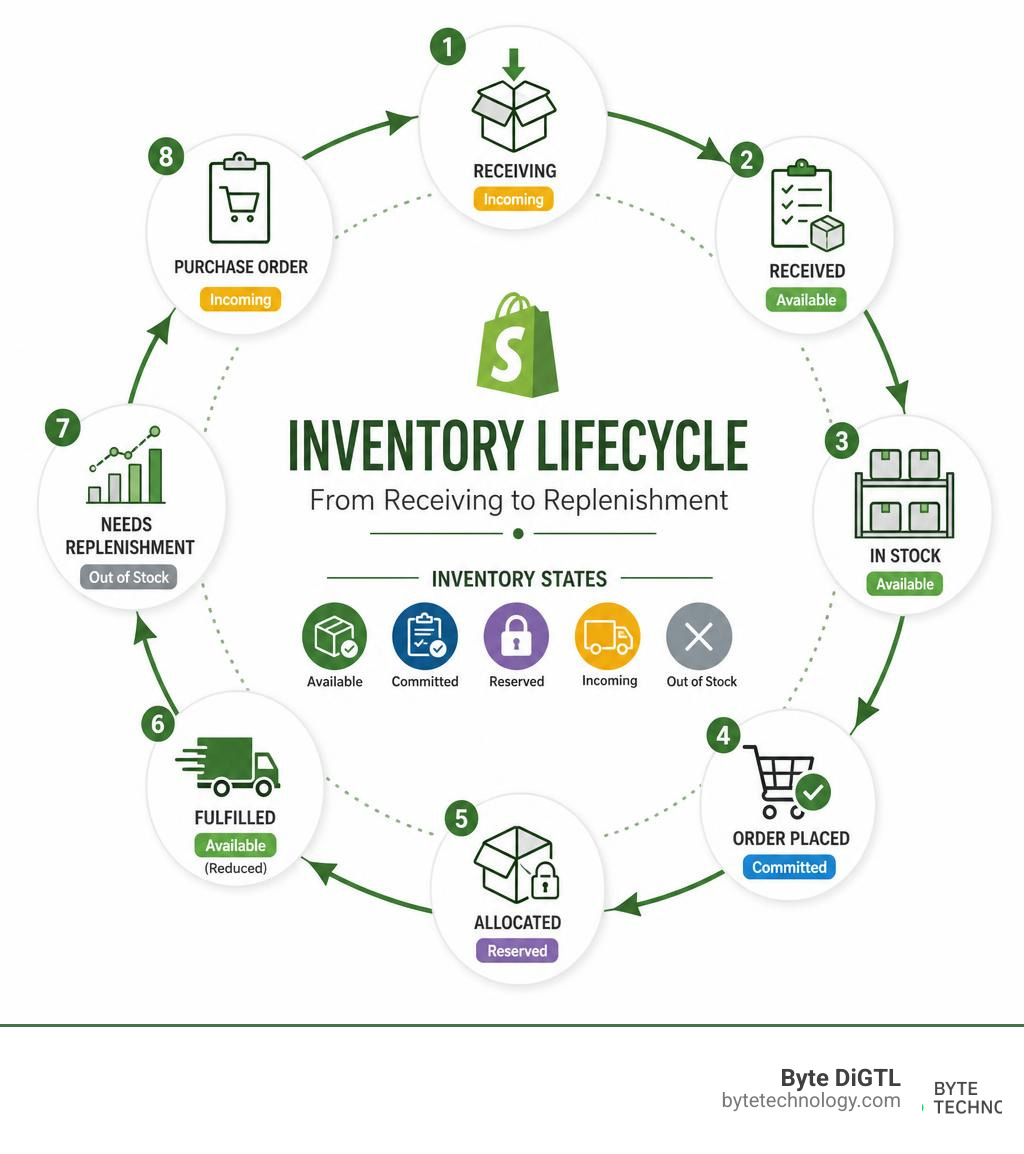
To manage your stock effectively, you must understand how Shopify categorizes inventory. It is no longer just a matter of “in stock” or “out of stock.” Shopify uses five distinct inventory states to give you complete visibility:
| Inventory State | Definition | Impact on Store |
|---|---|---|
| On-hand | The total physical inventory present at a specific location, including items already purchased but not yet shipped. | Represents the actual physical count in your building. |
| Available | Stock that is ready for sale and has not been committed to any orders. | This is the number customers see on your website. |
| Committed | Items that have been purchased by customers but have not yet been fulfilled or shipped. | These units are locked and cannot be sold again. |
| Reserved | Inventory set aside for draft orders, special promotions, or app-specific allocations. | Temporarily removed from the available pool. |
| Incoming | Inventory that is on its way to your location, typically from a supplier purchase order or a transfer. | Helps you plan for upcoming replenishment. |
Understanding how these states interact prevents overselling. For example, if you have 50 units on-hand but 10 are committed to recent orders, your available inventory is 40. Shopify will only allow customers to purchase up to 40 units, protecting your brand from fulfillment delays.
Advanced Operations: Adjustments, Transfers, and Automation

As your business grows, manual inventory tracking becomes impossible. High-volume stores require advanced operations like barcode scanning, systematic inventory transfers, and automated workflows to maintain accuracy.
Automating Workflows with Shopify Flow and Alerts
Shopify Flow, available on Shopify Shopify and Plus plans, allows you to create automated workflows to handle repetitive inventory tasks. For example, you can set up a workflow that monitors your available inventory levels. When a high-demand SKU drops below a safety stock buffer of 15 units, Shopify Flow can instantly send a notification to your purchasing manager via email or Slack.
You can also automate merchandising tasks. If a product goes completely out of stock, Shopify Flow can automatically hide the product from your online storefront or move it to the bottom of collection pages. This keeps your store looking fresh and prevents customers from landing on frustrating out-of-stock pages.
Managing Purchase Orders and Replenishment
Keeping your shelves stocked requires a strong relationship with your suppliers. Shopify allows you to track supplier purchase orders and move inventory between locations using transfers.
When you create a purchase order in Shopify, you can specify the products, quantities, and expected delivery dates. This transitions the ordered items into the Incoming state. Once the shipment arrives at your warehouse, your team can receive the items directly in the admin, which automatically moves them from incoming to available. If you are migrating from legacy systems like Stocky, Shopify offers native pathways to transition your historical purchasing data seamlessly.
Leveraging Shopify POS Pro for In-Store Inventory
For merchants operating brick-and-mortar stores in cities like Minneapolis MN or Monterey CA, unifying physical and digital sales is crucial. Shopify POS Pro bridges this gap by bringing advanced inventory management to your physical storefronts.
With POS Pro, store staff can perform physical stock counts using barcode scanners directly on their mobile devices. They can receive incoming transfers, process returns directly back into inventory, and view real-time stock levels across all other retail and warehouse locations. Retailers like Allbirds have optimized their store stock levels and significantly reduced their physical retail footprint by adopting Shopify POS alongside their online store.
Extending Shopify with Apps and the GraphQL Admin API
While Shopify’s built-in tools are incredibly powerful, some merchants require highly specialized features. This is where third-party apps and custom development come in. By leveraging the Shopify App Store, you can find hundreds of tools designed for multi-channel syncing, 3D warehouse mapping, and advanced barcode printing.
For developers and merchants looking to build custom integrations, Shopify provides robust access through its API. You can use the apps in inventory management documentation to understand how external systems interact with Shopify’s inventory engine.
Developers can query specific variant data using the inventoryItem – GraphQL Admin endpoint, or check active configuration states using the inventoryProperties – GraphQL Admin query. This level of API access allows for seamless integrations with ERPs, custom warehouse management systems, and accounting platforms.
Optimizing Inventory Levels and Preventing Stock Issues
Optimizing your inventory levels is a delicate balancing act. You want to hold enough stock to meet customer demand, but not so much that you run out of cash or warehouse space. In 2024, the average peak warehouse space utilization dropped to 73.2%, indicating that many retailers were paying for empty space due to fluctuating stock volumes.
To prevent overstocking and understocking, we recommend performing regular ABC inventory analysis. This technique categorizes your stock into three groups:
- A-Grade: Your top-performing products that make up the bulk of your revenue. These require tight control and frequent replenishment.
- B-Grade: Moderate-value items with steady sales.
- C-Grade: Slow-moving products that tie up your cash. These are candidates for clearance sales or bundle discounts.
To learn more about how to optimize your checkout experience and offer flexible payment terms that can help move this inventory, read our ultimate Shopify Afterpay setup guide.
Integrating Shopify Fulfillment Network
For brands looking to outsource their logistics completely, the Shopify Fulfillment Network offers an integrated 3PL solution. SFN automatically syncs with your Shopify inventory management system, meaning that as soon as an order is placed, SFN picks, packs, and ships the product to your customer.
This system places your inventory in fulfillment centers strategically located across the country, ensuring fast two to three day shipping speeds. Because the inventory sync is native, your available stock levels are updated in real time, completely eliminating the risk of overselling across your channels.
Analyzing Inventory Reports and Analytics
You cannot manage what you do not measure. Shopify provides a suite of inventory reports designed to give you deep insights into your business health. Key metrics to monitor include:
- Sell-through rate: The percentage of your inventory sold during a specific time period.
- Days of inventory remaining: An estimate of how long your current stock levels will last based on average sales velocity.
- ABC analysis: As mentioned above, this highlights your most and least valuable SKUs.
By reviewing these reports monthly, you can make smarter purchasing decisions, negotiate better terms with suppliers, and free up cash flow to reinvest in marketing and development. If you are looking for creative ways to engage your community while managing your store, you might also find our guide on how to turn your store into a force for good with Shopify donations helpful.
Frequently Asked Questions About Shopify Inventory
How do I prevent overselling on Shopify?
To prevent overselling, ensure that Track quantity is enabled for every product variant. Make sure you do not check the box that says “Continue selling when out of stock” unless you are intentionally running a pre-order campaign. Additionally, using real-time inventory sync across your sales channels ensures your available stock drops to zero the moment the last item is purchased.
What is the difference between on-hand and available inventory in Shopify?
On-hand inventory is the actual physical count of units currently inside your warehouse or retail store. Available inventory is the quantity that is actually up for sale on your website. The difference between the two is typically your committed inventory, which consists of units that have already been purchased by customers but have not yet been packaged and shipped.
Can I sync Shopify inventory with external marketplaces?
Yes. Through the Shopify App Store, you can find multi-channel integration apps that sync your Shopify inventory directly with external marketplaces like Amazon, eBay, Etsy, and TikTok Shop. This ensures that whenever a sale occurs on any platform, your central inventory count in Shopify updates instantly, keeping your business running smoothly.
Conclusion
Mastering your Shopify inventory management system is one of the most impactful steps you can take to secure the financial health and operational efficiency of your retail business. From understanding inventory states to automating low-stock alerts and leveraging advanced retail tools, a unified approach to inventory keeps your operations running smoothly.
Ready to take your store to the next level? Explore our professional Shopify E-commerce Development services and let us help you build a high-performing, unified commerce experience.