

Custom vs. Public: What Is a Shopify Custom App?
When you decide to create custom app in shopify stores, it helps to understand how custom apps differ from public apps. Public apps are listed on the Shopify App Store or distributed unlisted to thousands of stores. Custom apps, by contrast, are tailormade for a single merchant. They give you full control over custom features, internal business logic, and private administrative workflows.
To learn more about standard app definitions, check out the Shopify Help Center | About apps resource.
Understanding App Distribution and Limitations
Custom apps operate under specific technical rules and platform restrictions:
- Single Store Access: Custom apps are built exclusively for one merchant store. They cannot be installed across multiple stores using a single build.
- No App Store Listing: Because they are tailor-made, custom apps do not undergo App Store submission or public reviews.
- Non-Embedded Architecture: Merchant custom apps created using the modern
shopifyApppackage cannot be embedded inside the Shopify admin interface using an iframe. They run on external hosting or dedicated local environments. - Static Access Tokens: Instead of using standard web-based OAuth authorization flows, custom apps authenticate directly using generated client credentials or Admin access tokens.
If you are exploring early planning steps for custom integrations, see our guide on how to build a Shopify app from scratch.
Why the January 1, 2026 Cutoff Changes How You Create Custom App in Shopify Workflow
A major shift in Shopify custom app development occurred on January 1, 2026. Prior to this date, merchants could generate basic custom API keys directly inside their store’s Shopify admin UI under Settings > Apps and Sales Channels.
Starting January 1, 2026, Shopify disabled the creation of new legacy custom apps within the store admin. Legacy custom apps created before this deadline continue to function without interruption, but all new custom apps must now be built and managed through the Shopify Dev Dashboard. This change improves platform security, gives developers central logging and performance health tools, and aligns custom apps with modern API scope management.
For more details on plugin architecture evolution, read our In Depth Guide To Create Shopify Plugin.
Key Steps to Create Custom App in Shopify Stores

To build a custom app effectively, you need to follow a structured development lifecycle from planning to installation. Official technical documentation can be found via build?assistant=1.
Idea Validation and Architecture Planning
Before writing code, validate your custom app idea. With the average Shopify merchant using six apps, your custom app should address a clear operational gap, such as connecting a unique inventory backend or creating bespoke reporting logic.
When validating an app concept:
- Identify the exact merchant pain point.
- Confirm that no public app satisfies your workflow without heavy workarounds.
- Verify if external third-party software requires direct GraphQL API connections.
- Assess whether your app requires custom database storage or can rely on extension-only hosting.
For broader store strategy, check our guide on 10 smart strategies for Shopify e-commerce development.
Scaffolding via Shopify CLI and Extension-Only Templates
Shopify CLI makes project scaffolding quick and repeatable. To start a full-stack project, open your terminal and run:
Select the recommended React Router template when prompted. Review the full guide at scaffold-app.
If your app only requires UI modifications, admin cards, or checkout logic without a developer-hosted backend web server, choose an extension-only build using build-extension-only-app. Extension-only custom apps run on Shopify infrastructure and eliminate server maintenance.
Dev Dashboard Setup, Permissions, and Installing Custom Apps
Follow these steps to configure your app using the Dev Dashboard:
- Log in to your developer or Partner account and open the Dev Dashboard.
- Click Create App and give your app a title.
- Configure your initial App URL and set required Webhook API versions.
- Under the Access section, select the exact Admin API scopes your application requires (such as
read_productsorwrite_orders). - Release a version of your configuration in the Dev Dashboard.
- Install the app directly onto your targeted store from the Dev Dashboard.
Developer install links generated for custom apps expire after 7 days for security reasons. Furthermore, staff members managing custom apps must be assigned the App development > Develop permission, while store owners have full access automatically.
To dive deeper into plugin scaffolding, read The Ultimate Guide To Shopify Plugin Development.
Technical Configuration: Authentication, shopify.server.ts, and Local Execution
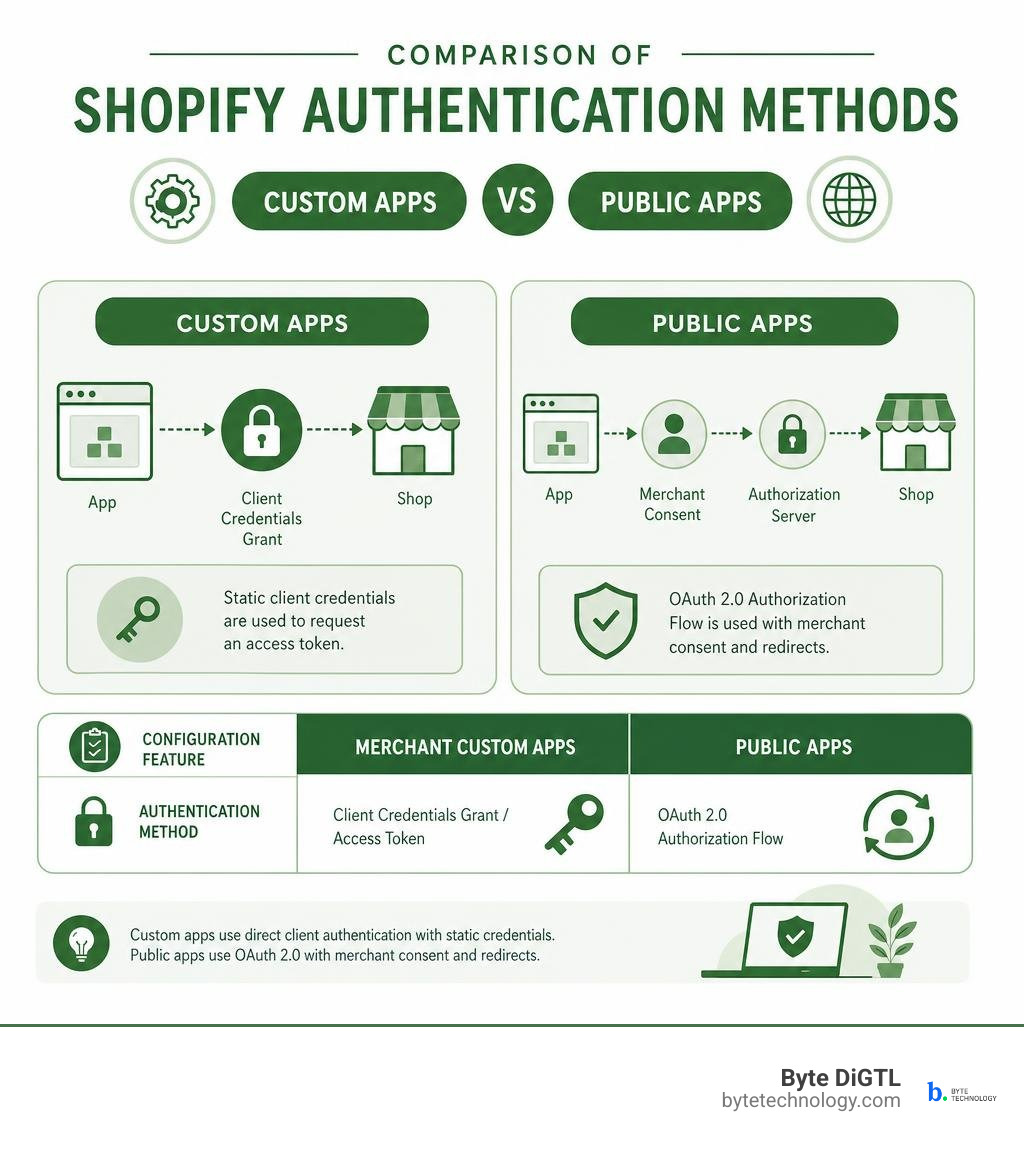
Merchant custom apps bypass standard OAuth redirects in favor of static client credentials. Here is how authenticating custom apps compares to public distribution:
| Configuration Feature | Merchant Custom Apps | Public Apps |
|---|---|---|
| Authentication Method | Client Credentials Grant / Access Token | OAuth 2.0 Authorization Flow |
App Embedding (isEmbeddedApp) |
Must be set to false |
Set to true (via App Bridge) |
| Distribution Setting | AppDistribution.ShopifyAdmin |
AppDistribution.AppStore |
| Local Execution | Direct script via Vite (npm exec remix vite:dev) |
shopify app dev tunnel |
| Admin Access Token | Generated static token | Dynamic session tokens |
Configuring shopify.server.ts for Merchant Custom Apps
When building a Remix custom app, update your shopify.server.ts file to specify merchant custom app parameters explicitly. You must import AppDistribution from @shopify/shopify-app-remix/server and configure credentials using environment variables:
Notice that isEmbeddedApp is set to false. Merchant custom apps built with @shopify/shopify-app-remix cannot run inside an admin iframe.
Review Shopify’s official app build documentation when confirming environment variables, distribution settings, and server configuration requirements.
Obtaining Access Tokens and Managing API Scopes
To communicate with the GraphQL Admin API, your app uses a static Admin API access token obtained through the client credentials grant flow using your Client ID and Client Secret.
Follow the principle of least privilege when selecting access scopes in the Dev Dashboard. Only request scopes your backend logic uses. If your app requires sensitive data, note that store accounts must be on a Grow plan or higher to authorize Custom Level 2 PII (Personally Identifiable Information) access.
Learn how to manage data access safely in our guide on how to make Shopify app magic happen.
Running Local Servers Without Shopify CLI
Because merchant custom apps use static API credentials and are non-embedded, you do not use shopify app dev to run them locally. Instead, launch your development server directly using your package manager:
Once running, access your application locally by passing the shop parameter in your browser address bar:
This local execution path allows rapid iteration without setting up external tunnel sessions.
Developing Store Interfaces and Extending Commerce Data

Integrating Polaris UI and GraphQL Admin APIs
If your custom app includes a standalone web dashboard, build interface components using Shopify Polaris. Polaris components mirror the design and accessibility standards of the Shopify admin interface.
Connect your interface to store data using the GraphQL Admin API. GraphQL allows you to request exact product, customer, or inventory fields in a single request. Keep query costs in mind: standard Shopify API rate limits grant a 1,000-point cost budget that restores at 50 points per second.
Read more about enhancing store capabilities with custom development in our article on how to supercharge your store with a Shopify theme customization expert.
Maintaining Custom Apps Against API Deprecation Schedules
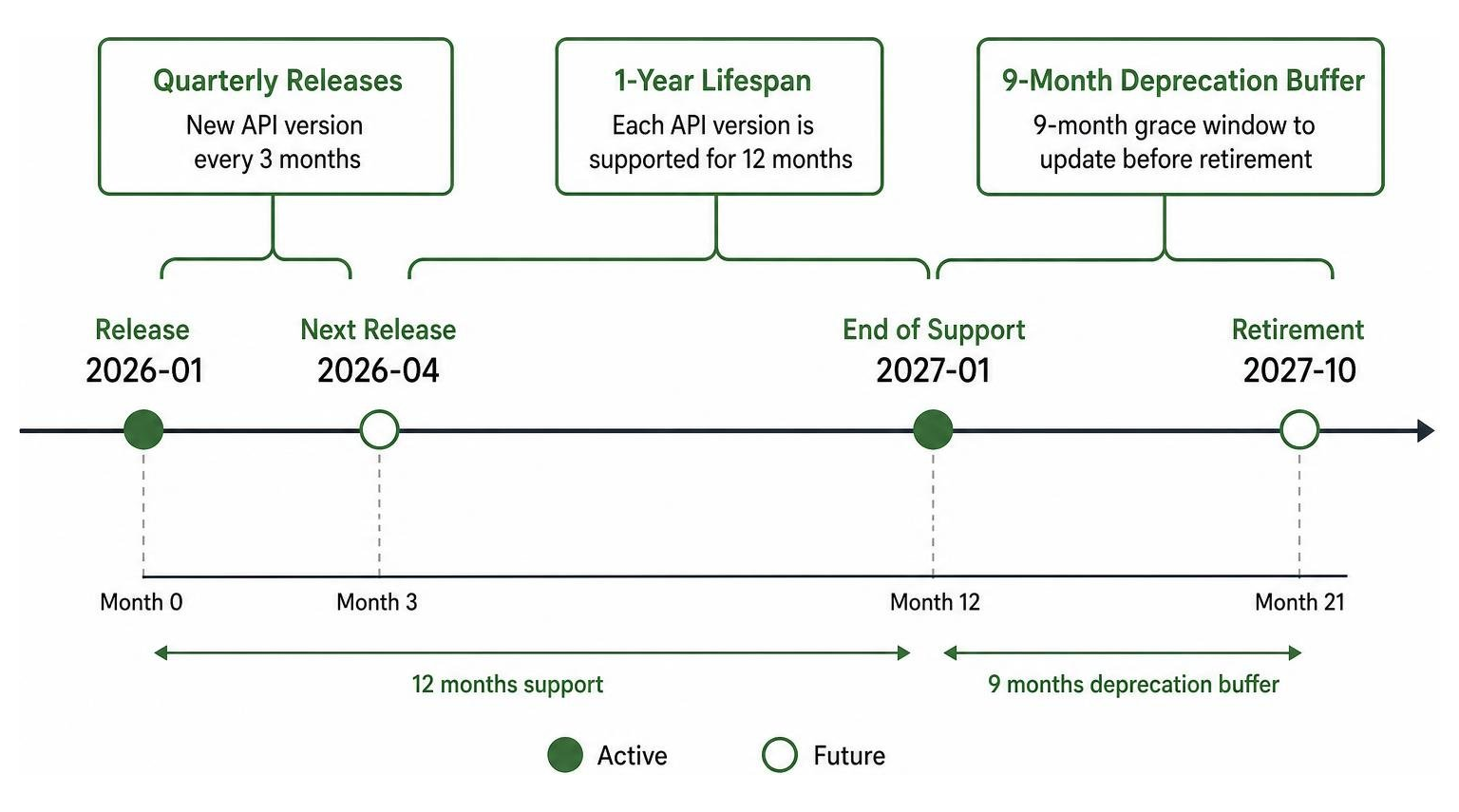
Building a custom app requires long-term maintenance:
- Quarterly Releases: Shopify releases a new API version every three months (e.g.,
2026-01,2026-04). - 1-Year Lifespan: Each API version is supported for exactly 12 months.
- 9-Month Deprecation Buffer: When Shopify introduces breaking changes, developers receive a 9-month grace window to update code before older versions retire.
Monitor your Dev Dashboard health metrics and developer email notifications regularly. For additional maintenance guidance, consult About apps.
Frequently Asked Questions About Shopify Custom Apps
How do merchant custom apps authenticate without standard OAuth?
Merchant custom apps authenticate using a static Admin API access token generated via the client credentials grant flow using the app’s client ID and secret. Because custom apps target a single store, they do not require interactive browser OAuth redirects.
Can a custom app be embedded inside the Shopify admin interface?
No. Merchant custom apps configured with the @shopify/shopify-app-remix library must set isEmbeddedApp to false. They run as standalone web applications hosted on external servers or local environments.
How do you create custom app in shopify using local development tools without CLI?
To run a merchant custom app locally without Shopify CLI, start the web server directly using npm exec remix vite:dev or yarn remix vite:dev. Once started, navigate to http://localhost:3000/app?shop=your-store-name.myshopify.com in your browser.
Conclusion
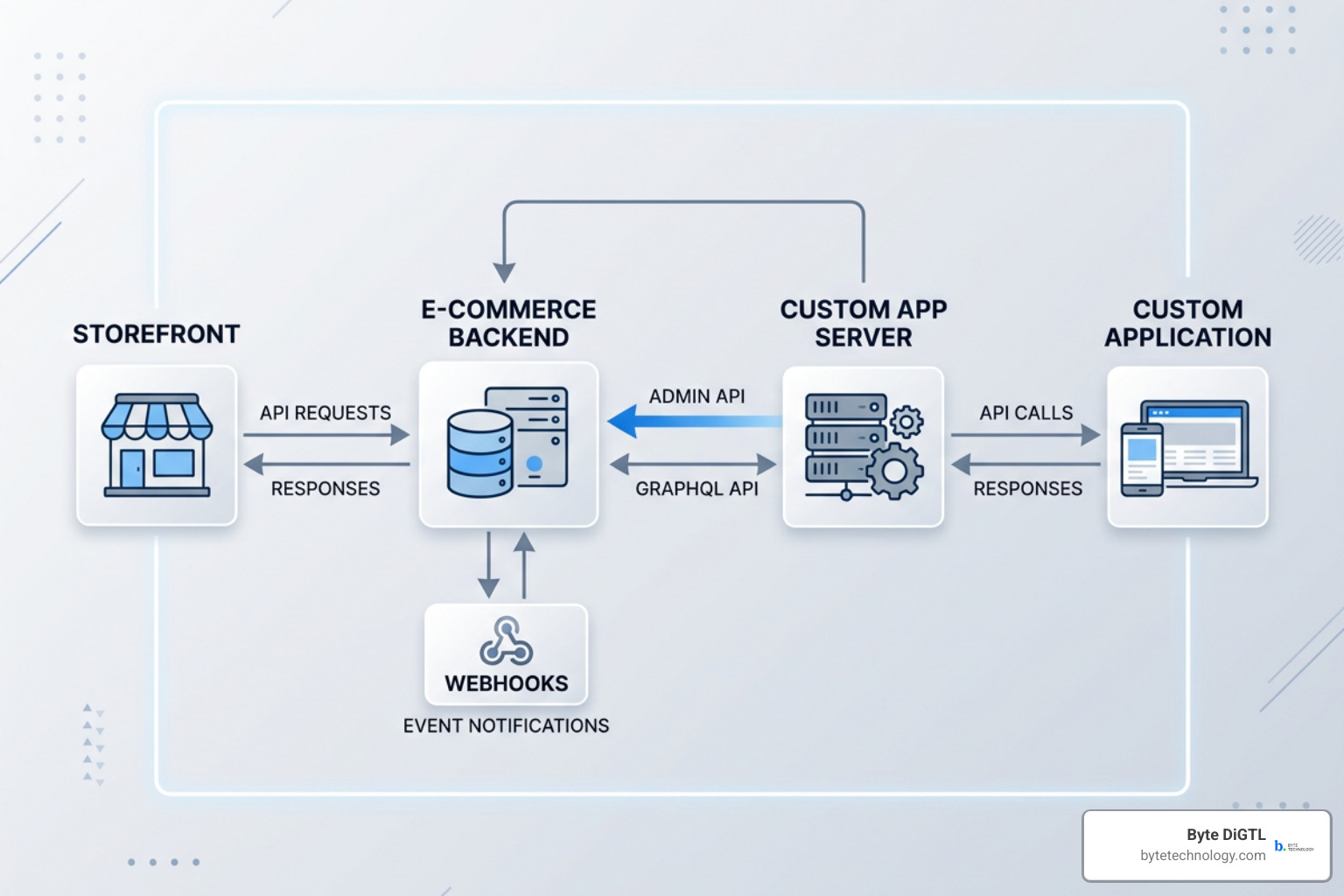
Learning how to create custom app in shopify gives you complete control over your store’s backend workflows, integrations, and administration tools. By transitioning your development workflow to the Shopify Dev Dashboard, setting up static authentication in shopify.server.ts, and leveraging Polaris and GraphQL APIs, you can build reliable tools tailored to your exact business operations.